Answers for instructors, students, and programs getting BoxVitals ready
for classroom simulation, with connection guides and setup references
for iOS and browser-based workflows.
What is BoxVitals?
BoxVitals is a cardiac monitor simulation system for clinical
education. It lets instructors control rhythms, vital signs,
12-lead findings, defibrillation, pacing, and scenario progression
while learners interact with a realistic monitor view.
Can BoxVitals be used for patient care?
No. BoxVitals is for simulation, education, and training only. It is
not a medical device, patient monitor, clinical decision support
tool, or substitute for real clinical equipment.
How do I connect two iPads?
Open BoxVitals on the instructor iPad and choose Instructor.
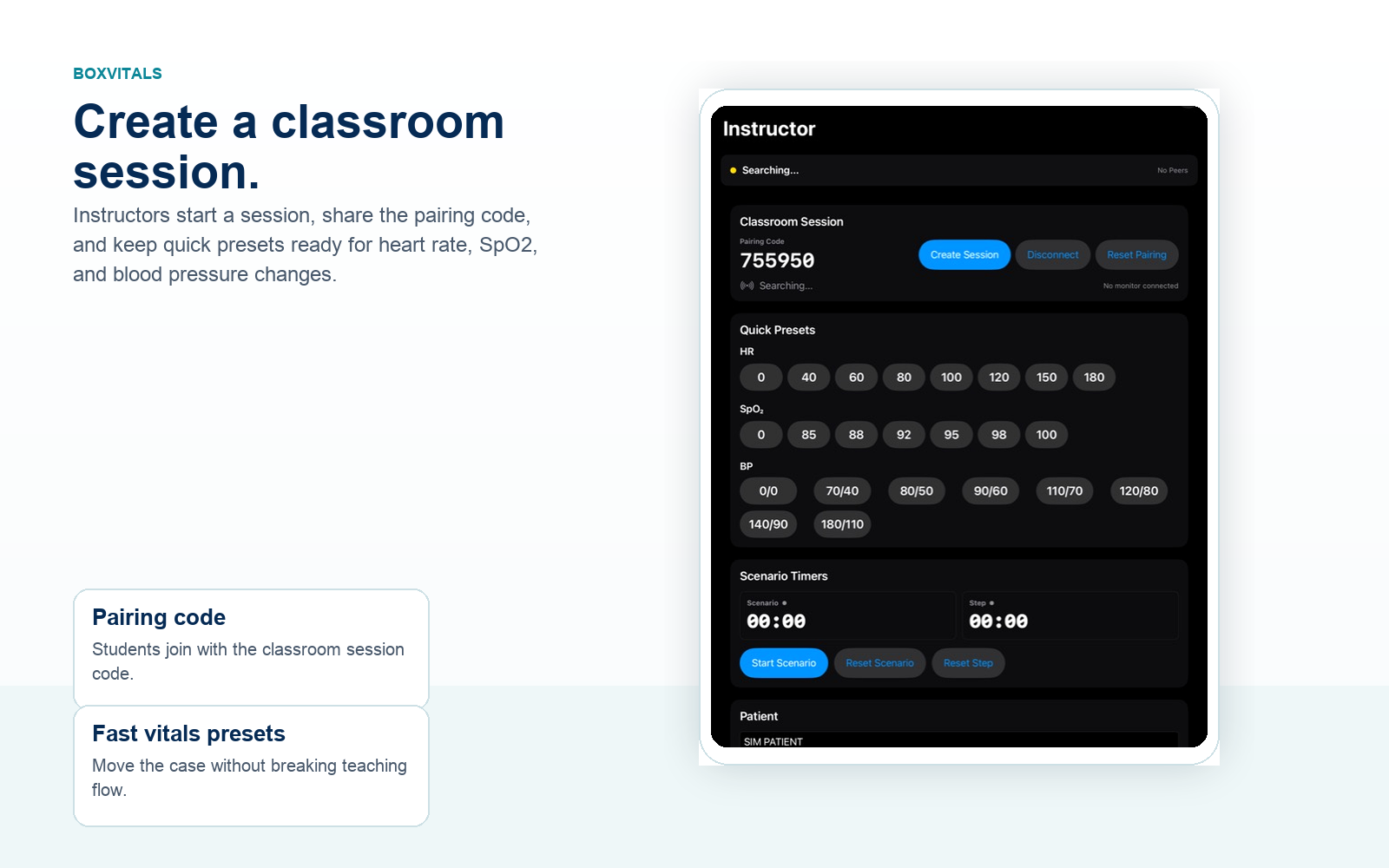
Start or host a session. The instructor screen shows a pairing code.
Open BoxVitals on the learner iPad and choose Monitor.
Enter the pairing code on the learner device and tap Join.
Confirm the instructor screen shows the learner monitor as connected.
On a fresh install, iPadOS may ask for Local Network access. Allow
it so BoxVitals can find nearby devices for classroom pairing.
Instructor pairing code and quick presets for classroom setup.
How do students join from a browser?
Open the instructor app and start a classroom session.
On the student laptop or phone, open the BoxVitals monitor page.
Complete the security check when prompted.
Enter the six digit session code and tap Join.
Keep the page open while using the web monitor.
The web monitor is useful for laptops and mixed-device classrooms,
but brief network delays can occur. For the most responsive
experience, use the iOS app when available.
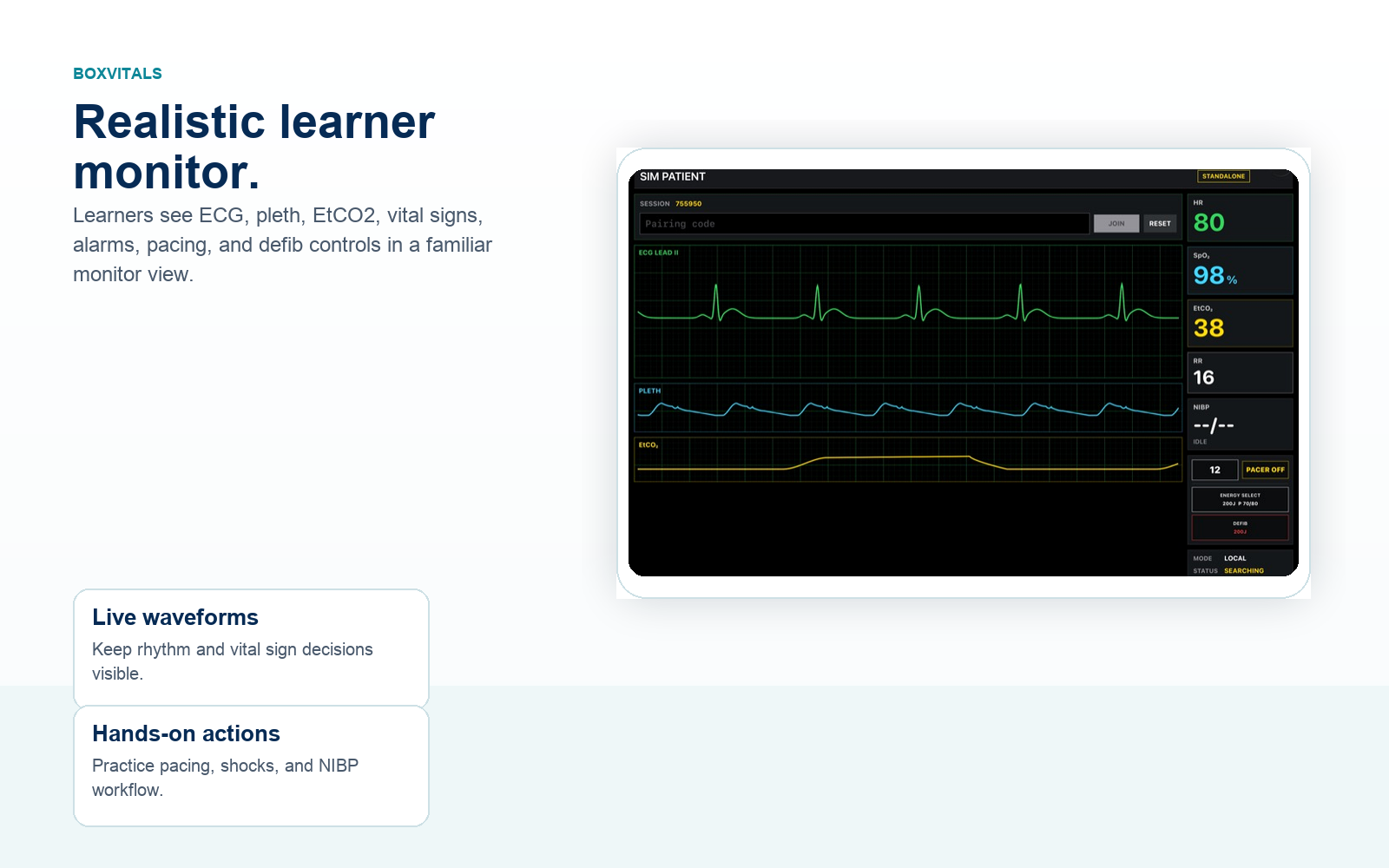
Learner monitor after joining a live classroom session.
How do I use the web instructor view?
Sign in to your BoxVitals account.
Open Instructor from the account workspace.
Start a web-hosted session and share the session code.
Use the rhythm, vitals, pacing, defib, and scenario controls during the case.
The web instructor view is intended for browser-based demos and
classrooms where the instructor is running from a laptop.
Vitals snapshots help learners connect reassessment with charting.
Does BoxVitals need internet?
Account setup, license activation, web monitor sessions, web
instructor sessions, and cloud scenario sync need internet access.
Local iOS classroom pairing is designed to keep working in training
environments where internet access is limited after activation.
What should I check if devices will not connect?
Confirm both devices are awake and BoxVitals is open.
Confirm Local Network permission is allowed in iPadOS Settings.
Use the current pairing code from the instructor device.
Reset pairing from the monitor if an old request appears stuck.
Keep devices near each other, especially when Wi-Fi is unavailable.
Can scenarios sync between web and iOS?
Yes. Account scenarios are designed to sync through your
BoxVitals license so instructors can create or edit scenarios on
the web and use them on licensed iOS devices.
After the device is activated with a license, use the scenario
sync control to pull down account scenarios before class.
Account scenarios sync to licensed iOS devices.
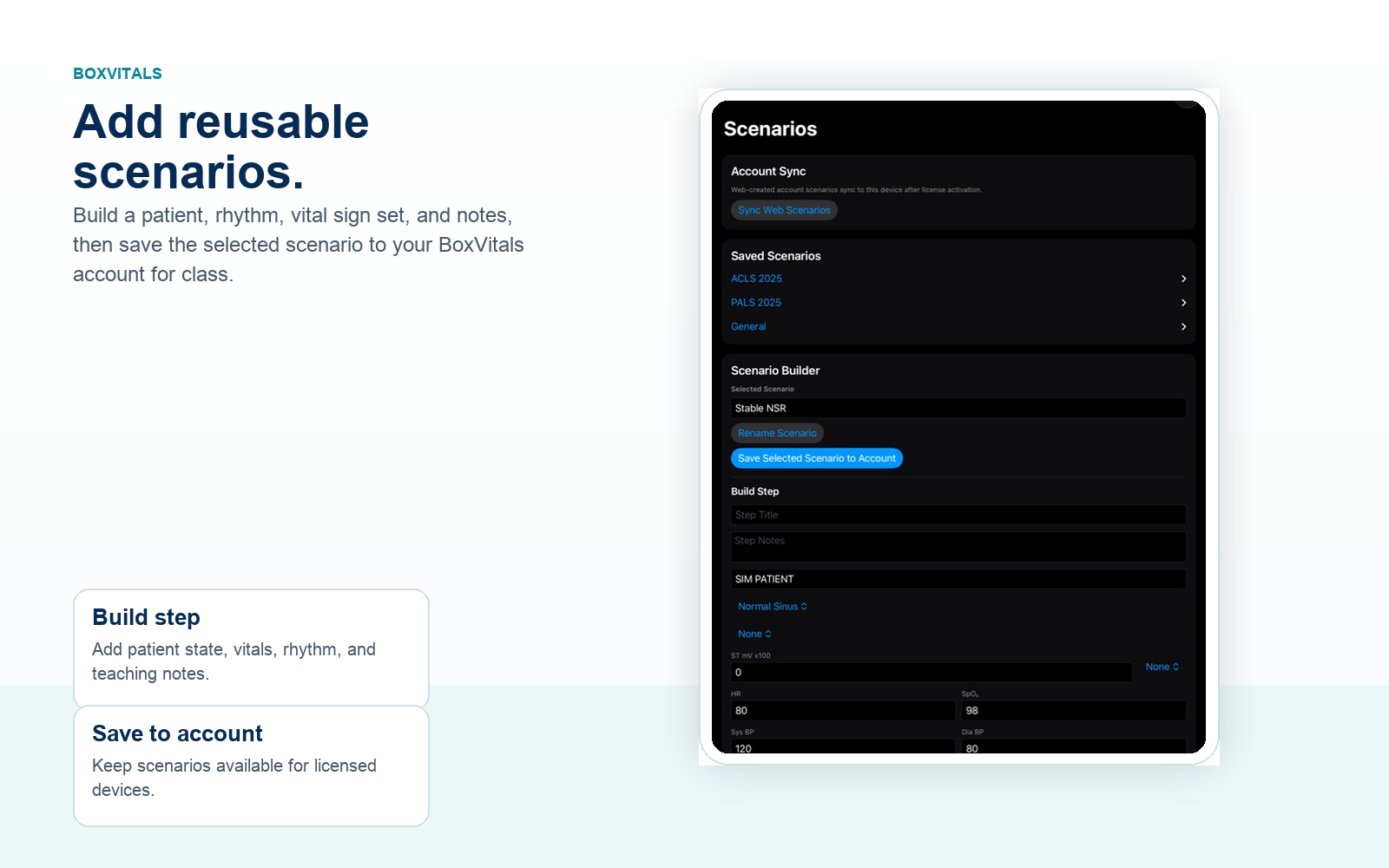
How do I add scenarios?
Activate the device with a BoxVitals license and open Scenarios.
Choose a saved scenario folder or start from the selected scenario field.
Add a clear scenario name, patient label, rhythm, vital signs, ST settings, and teaching notes.
Build each step around the decision you want learners to make.
Save the selected scenario to the account so it can sync back to licensed devices before class.
Keep scenario names short and classroom friendly. Use fictional
patient details only, and put instructor reminders in the notes
instead of real patient identifiers.
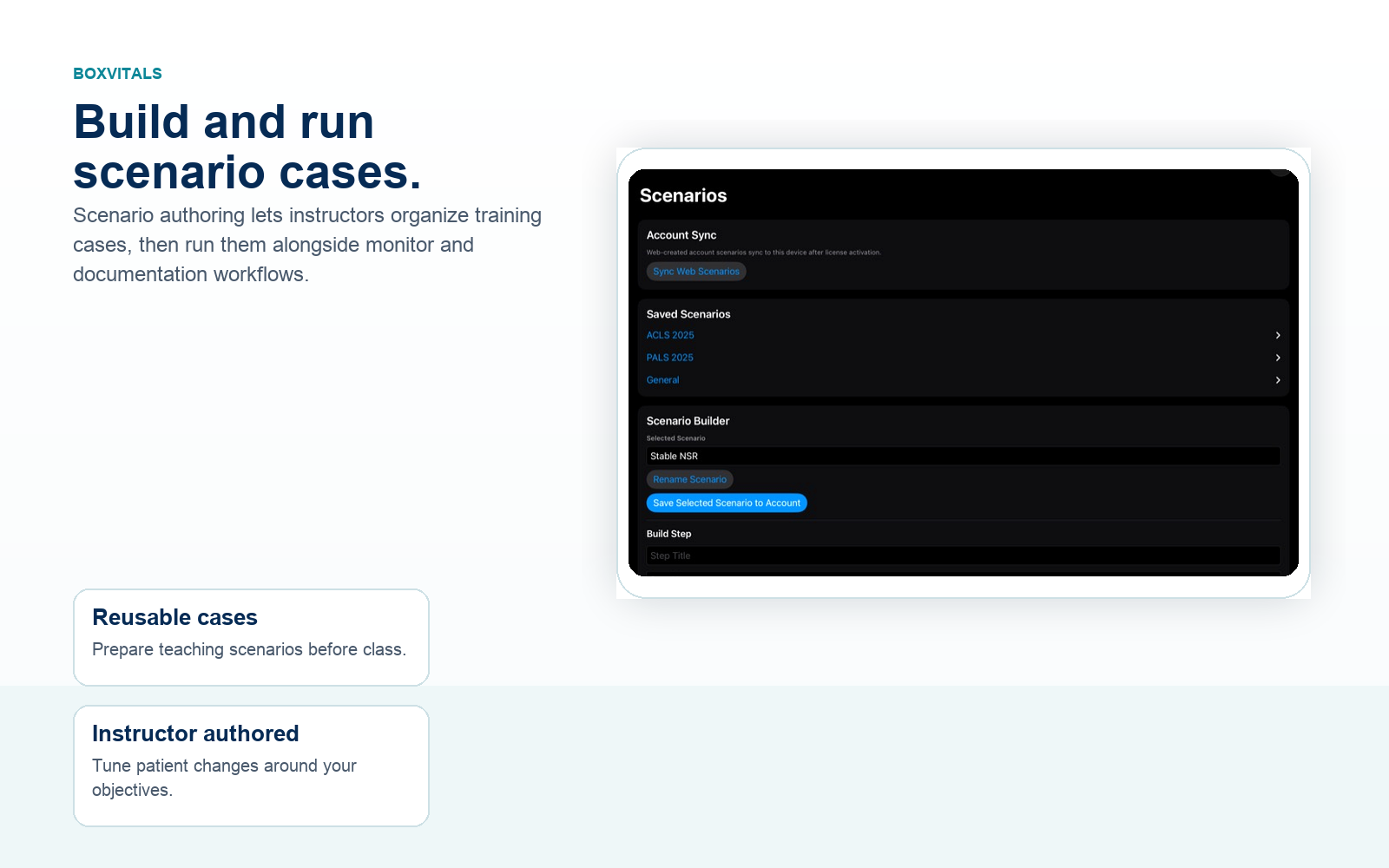
Scenario builder with saved folders, sync, and editable patient state.
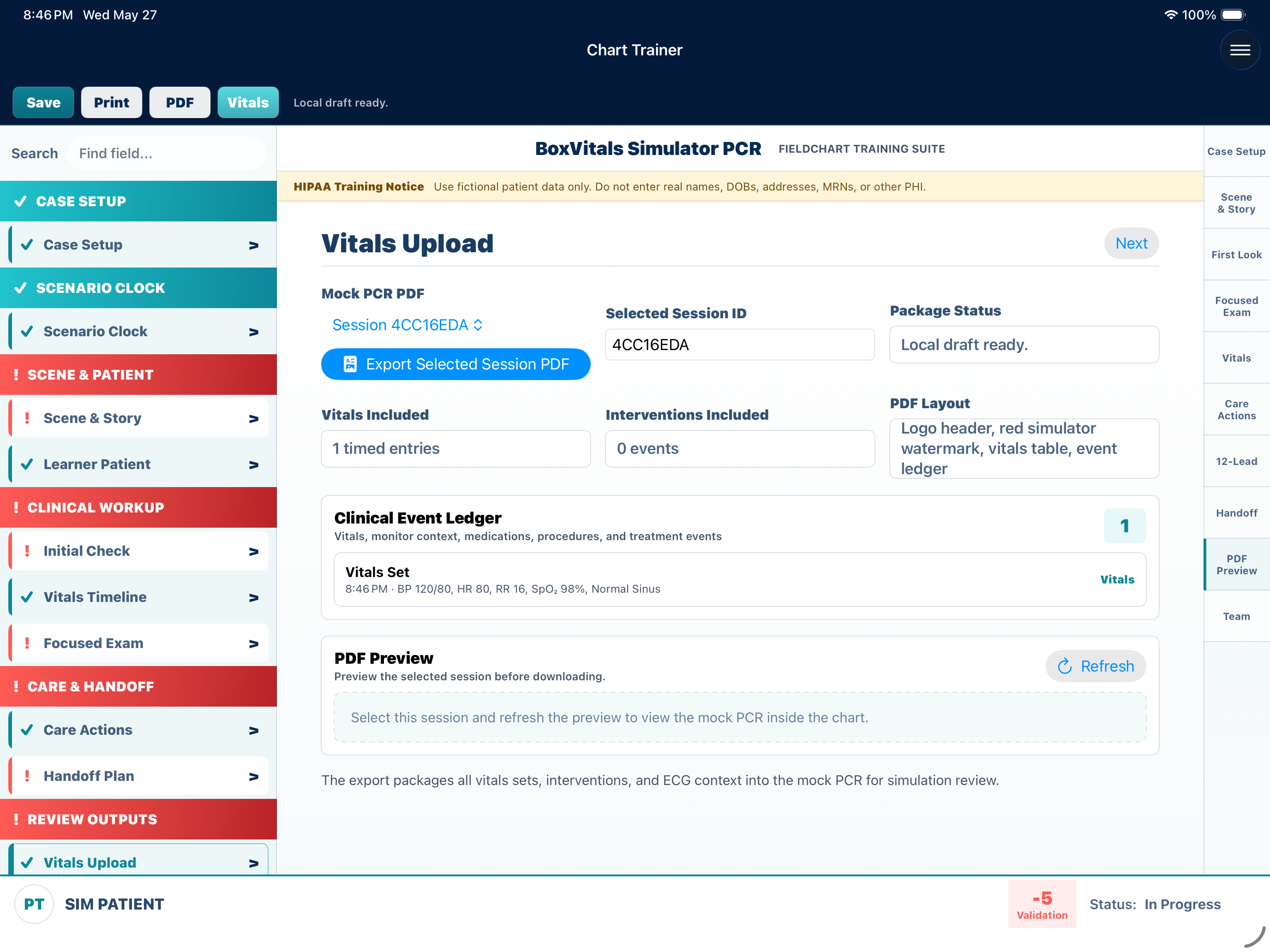
How do I use the Chart Trainer mock PCR export?
Open FieldChart during or after a simulated call.
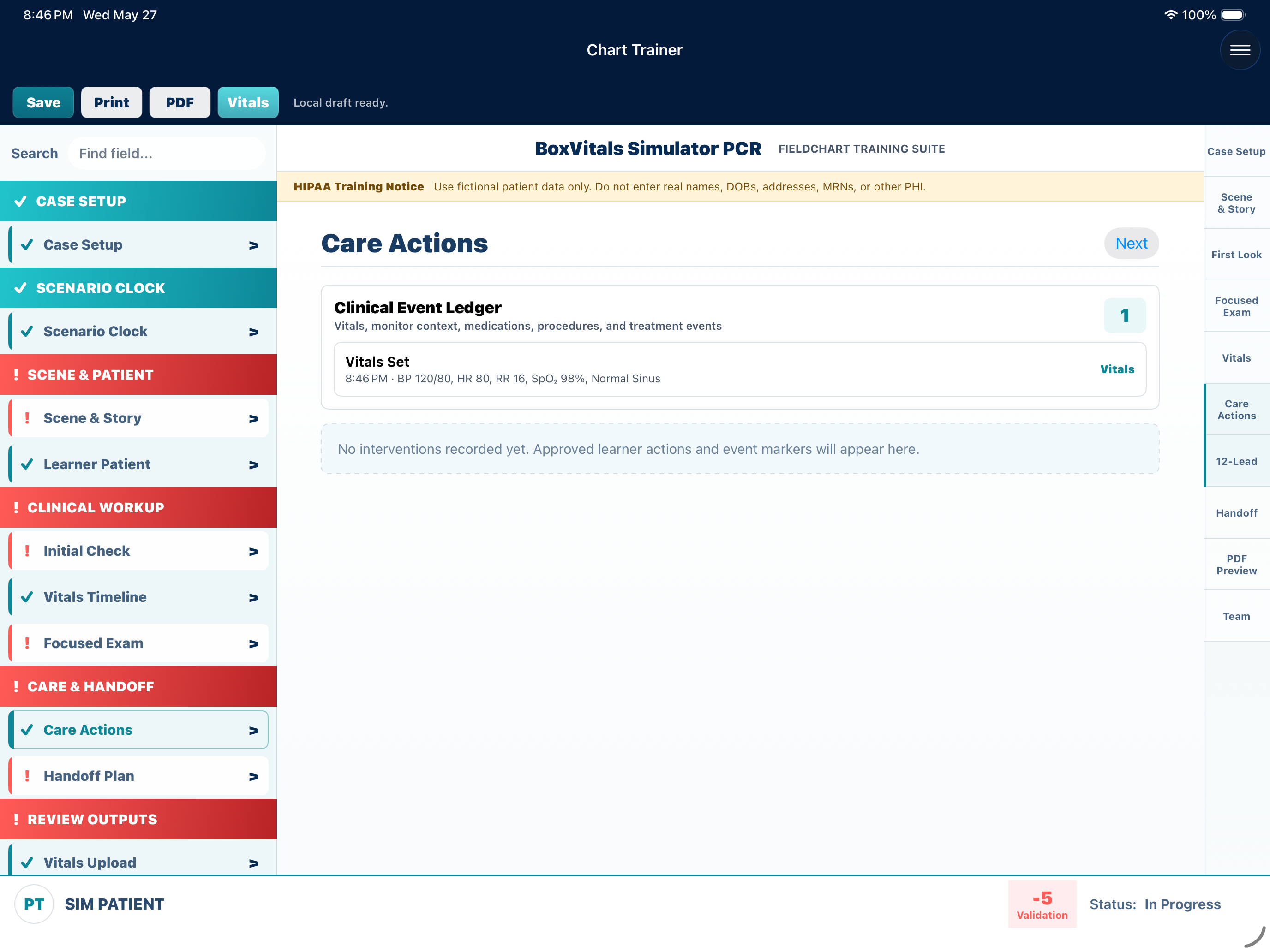
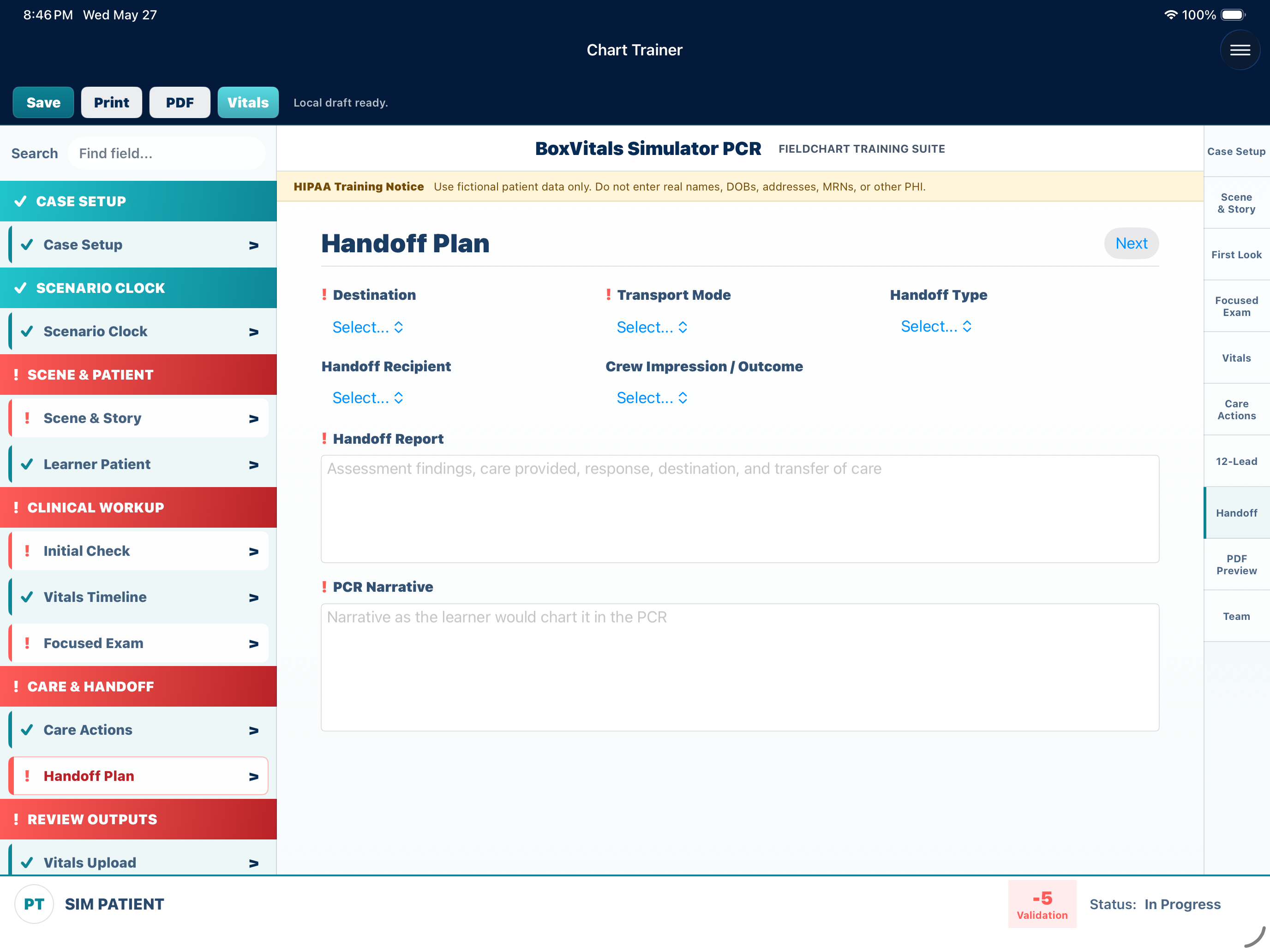
Complete the case setup, narrative, focused exam, vitals timeline, interventions, handoff, and team mapping.
Open PDF Preview and select the matching session ID before export.
Review the simulator PCR preview, including vitals, interventions, rhythm changes, focused exam findings, and identifiers.
Choose PDF or Vitals to export the BoxVitals Simulator Patient PCR for debrief or record review.
The Chart Trainer export is for simulation records only. It
packages the simulated patient information, user-entered PCR
narrative, focused exam prose, chronological vitals, interventions,
rhythm-change strips, 12-lead page, crew/session metadata, and
processing identifiers.
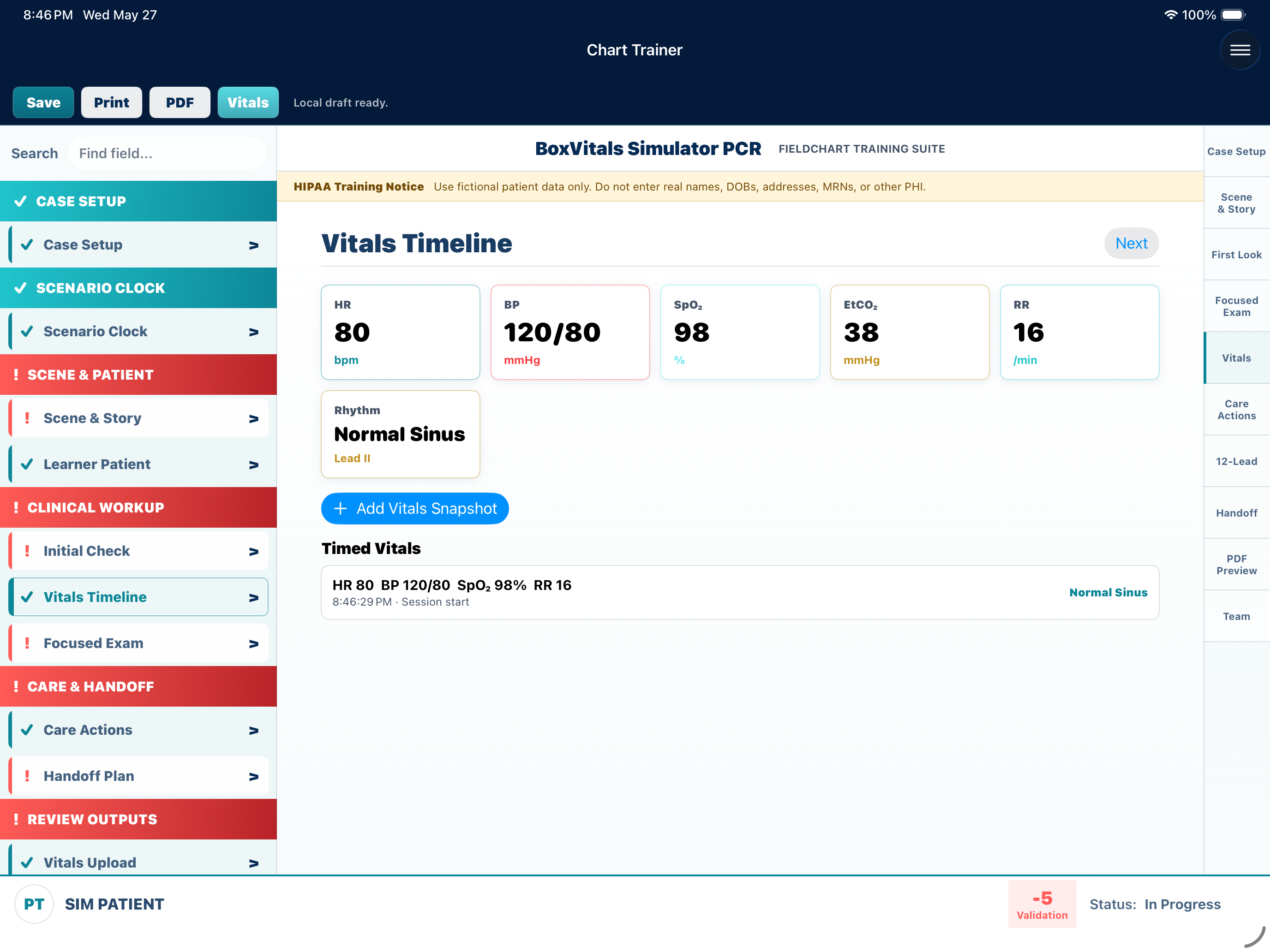
Chart Trainer mock PCR export for simulator patient debrief and documentation practice.Care actions track procedures, medications, and timestamped simulator interventions.Handoff fields give learners a structured finish to the simulated patient report.
How should we implement license activation?
Create or sign in to the BoxVitals account that owns the license.
Copy the active Individual Pro, institution, or site license key from the account dashboard.
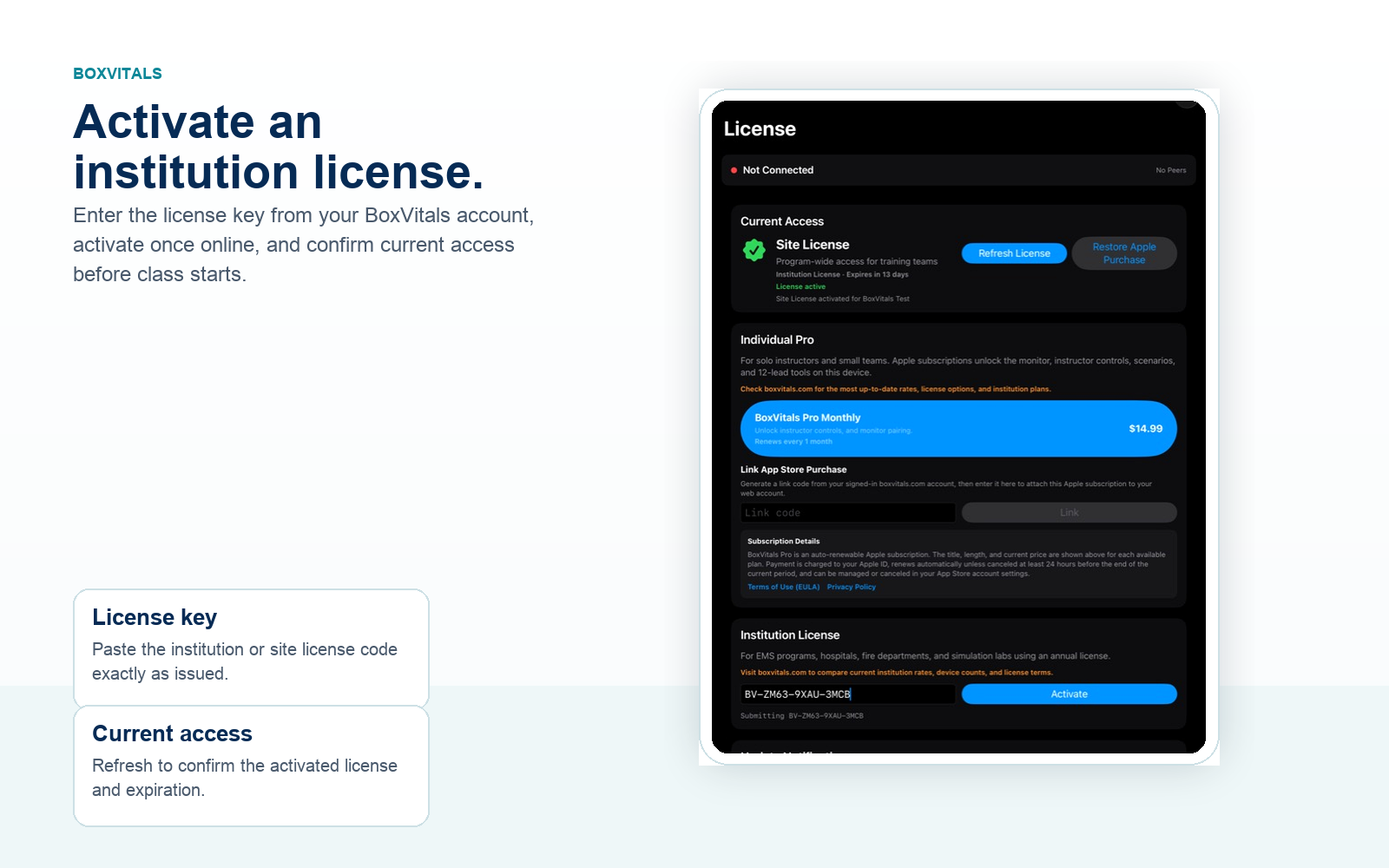
On each instructor device, open License and confirm the device has internet access.
Paste the license key into the Institution License field and tap Activate.
Use Refresh License to confirm Current Access shows the expected license type and expiration.
Before class, sync web scenarios and test one instructor-to-monitor pairing session.
License activation requires internet. After activation, local iOS
classroom pairing can be prepared for environments with limited
connectivity, but account setup, license refresh, purchases, and
scenario sync still require online access.
License screen showing current access and institution activation.
How do licenses work?
Instructors and organizations need a license to host sessions,
control monitors, create scenarios, and sync account content.
Students do not need to buy a license to join a monitor session
from the app or browser.
Individual Pro is available from the account page for $14.99 per
month or $149.99 per year. Program and institution licenses are
quoted separately when a team needs multiple instructors, more
devices, onboarding, purchasing support, or a site-wide rollout.
What should I check if license activation fails?
Confirm the device has internet access and the system date/time is correct.
Paste the license key exactly, including hyphens.
Confirm the license belongs to the account or institution you are setting up.
Tap Refresh License after activation before leaving the License screen.
Contact support if Current Access does not update after a successful activation attempt.
How do I request demo access?
Create a BoxVitals account, confirm your email, then sign in to the
account page and choose Request 3-Day Demo License. Demo licenses
are attached to the account that requested them.
For help with demo planning or evaluation questions, email
demo@boxvitals.com.
Can an admin reset devices?
Yes. Admins can reset device activations for an account when a
device is replaced, retired, or needs to reauthenticate.
What information should I avoid entering?
Do not enter real patient information into BoxVitals. Use simulated
patient names, fictional scenario details, and training-only notes.
Still need help?
Submit a support ticket at boxvitals.com/support
with your device type, app version if available, license email, and
what you were trying to connect. You can also email
support@boxvitals.com.